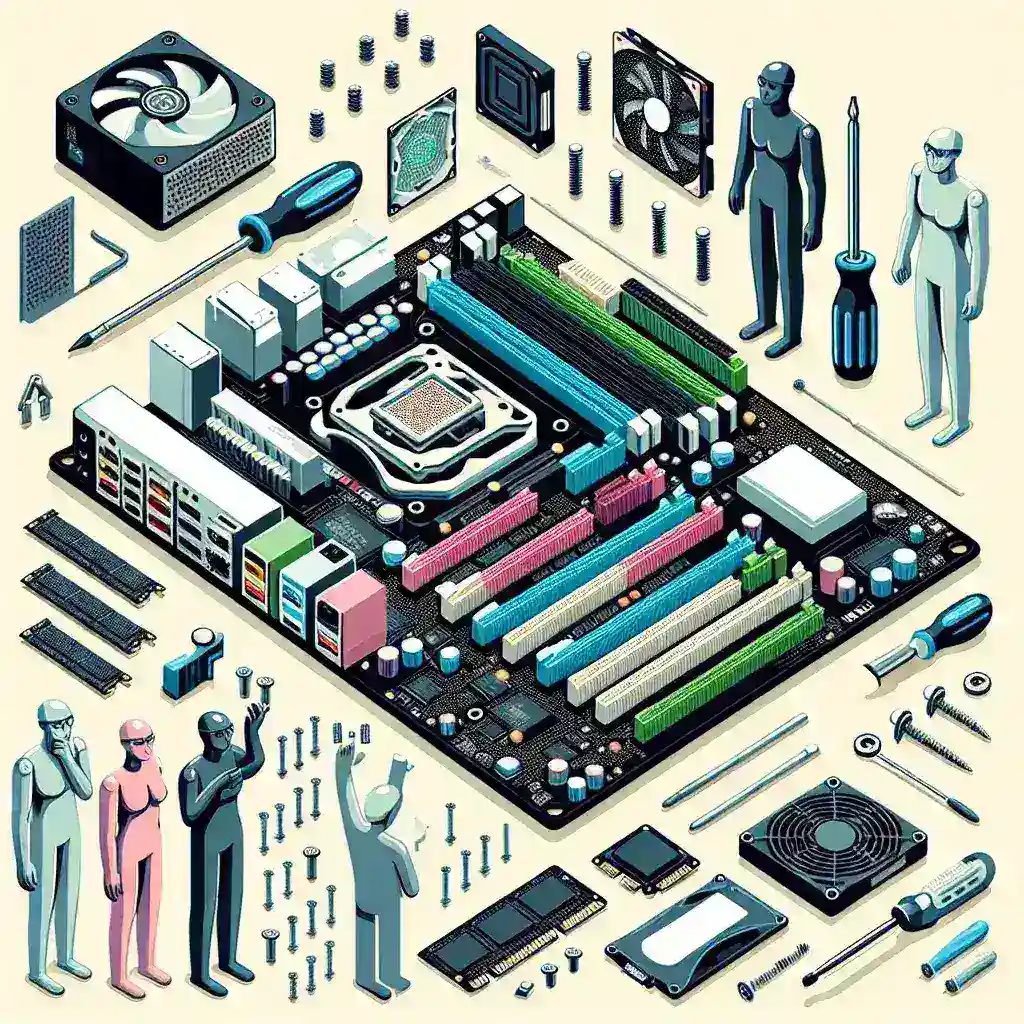
Building your own PC is a rewarding and cost-effective way to create a powerful and personalized computing system. Whether you’re a tech enthusiast looking to push the limits of performance or a beginner interested in saving money and gaining valuable technical skills, this guide will walk you through every step of the process. From choosing the right components to assembly and troubleshooting, you’ll have everything you need to build a PC that meets your needs and exceeds your expectations.
Why Build Your Own PC?
There are several compelling reasons to build your own PC:
- Customization: Build a PC that is tailored to your specific needs, whether it’s for gaming, video editing, or general use.
- Cost-Effectiveness: Save money by choosing individual components that offer the best value for your budget.
- Learning Experience: Gain valuable technical skills and a deeper understanding of computer hardware.
- Upgradability: Easily upgrade components over time to keep your PC performing at its best.
- Quality Control: Ensure that every component is of the highest quality and that the build is done to your specifications.
Choosing the Right Components
The success of your build depends on selecting the right components. Here’s a breakdown of the essential parts you’ll need:
1. Central Processing Unit (CPU)
The CPU is the brain of your PC. It processes instructions and performs calculations. Popular manufacturers include Intel and AMD. Consider factors like performance, power consumption, and compatibility with your motherboard when choosing a CPU.
2. Motherboard
The motherboard is the backbone of your PC, connecting all the components. It must be compatible with your CPU and support the type of RAM and other peripherals you plan to use. Look for features like USB ports, SATA ports, and expansion slots.
3. Random Access Memory (RAM)
RAM is crucial for multitasking and running demanding applications. Choose the right type, capacity, and speed for your needs. Most modern systems use DDR4 or DDR5 RAM.
4. Graphics Processing Unit (GPU)
The GPU handles graphics and is essential for gaming and video editing. NVIDIA and AMD are the leading manufacturers. Consider the performance, power consumption, and cooling requirements when selecting a GPU.
5. Storage
Storage options include hard disk drives (HDDs) and solid-state drives (SSDs). SSDs are faster and more reliable, while HDDs offer more storage capacity for less money. Consider a combination of both for a balanced setup.
6. Power Supply Unit (PSU)
The PSU provides power to all components. Choose a high-quality unit with sufficient wattage and efficiency to ensure stable performance and longevity. Look for certifications like 80 Plus Bronze, Silver, or Gold.
7. Case
The case houses all your components and should be chosen based on size, cooling, and aesthetics. Ensure it has enough space for your components and good airflow to keep everything cool.
8. Cooling
Effective cooling is crucial to prevent overheating and ensure stable performance. Options include air cooling (fans) and liquid cooling (cooling blocks and radiators). Consider the noise level and ease of installation when choosing a cooling solution.
Assembly Steps
Once you have all your components, it’s time to assemble your PC. Follow these steps to ensure a smooth process:
1. Prepare Your Workspace
Find a clean, well-lit, and static-free environment. Use an anti-static wrist strap to prevent damage to components. Lay out all the components and tools you’ll need.
2. Install the CPU
Carefully remove the CPU from its packaging and align it with the socket on the motherboard. Gently place it in the socket and secure it with the locking mechanism. Apply a thin layer of thermal paste to the CPU before attaching the cooler.
3. Install the RAM
Align the RAM sticks with the slots on the motherboard and press them firmly until they click into place. Ensure they are seated correctly and seated in the right slots.
4. Install the Motherboard
Place the I/O shield in the case and align the motherboard with the standoffs. Secure the motherboard to the standoffs with screws. Connect the power and data cables to the motherboard.
5. Install the GPU
Insert the GPU into the appropriate PCIe slot on the motherboard. Secure it with screws and connect the power cables if required.
6. Install Storage
Mount the SSDs or HDDs in the drive bays and connect the SATA data and power cables to the motherboard and PSU.
7. Install the PSU
Place the PSU in the designated area and secure it with screws. Connect the power cables to the motherboard, CPU, GPU, and storage devices.
8. Install Cooling
Install the case fans or liquid cooling system. Ensure proper airflow and secure all cables to keep them tidy.
9. Connect Peripherals
Connect the monitor, keyboard, mouse, and any other peripherals. Power on the PC and enter the BIOS to ensure everything is recognized and functioning correctly.
BIOS Setup
The BIOS (Basic Input/Output System) is the firmware that initializes and tests system hardware components. Access it by pressing a key (usually F2, F12, or Del) during the boot process. Here are some essential settings to check:
- Boot Order: Set the boot order to prioritize the operating system installation media.
- Secure Boot: Disable Secure Boot if you’re installing an operating system that doesn’t support it.
- Overclocking: Adjust CPU and RAM settings if you plan to overclock.
- Power Management: Configure power settings to optimize performance and efficiency.
Installing the Operating System
Once your PC is assembled and the BIOS is set up, it’s time to install the operating system. Here’s a quick guide:
1. Create Installation Media
Download the operating system ISO file and create a bootable USB drive using a tool like Rufus or Balena Etcher.
2. Boot from the Installation Media
Insert the USB drive and boot from it. Follow the on-screen instructions to install the operating system. Choose the appropriate installation type and partition the hard drive if necessary.
3. Install Drivers
After the installation, download and install the latest drivers for your components from the manufacturer’s website. This ensures optimal performance and compatibility.
4. Install Software
Install essential software like an antivirus, web browser, and productivity tools. Customize your system to suit your needs.
Troubleshooting
Even with careful planning, issues can arise during the build process. Here are some common problems and solutions:
1. PC Won’t Turn On
Check all connections, especially the power cables. Ensure the PSU is functioning and the motherboard is receiving power. Test the power button on the case.
2. No Display
Ensure the monitor is connected to the correct port (GPU or motherboard). Check the power and data cables for the GPU. Enter the BIOS to ensure the display settings are correct.
3. Components Not Recognized
Double-check the connections and ensure the components are seated correctly. Update the BIOS if necessary. Test the components in another system if possible.
4. Overheating
Ensure proper airflow and that all fans are functioning. Clean dust from the case and components. Consider upgrading the cooling solution if necessary.
Maintenance and Upgrades
Regular maintenance and occasional upgrades will keep your PC running smoothly and ensure it remains up-to-date:
- Keep the Case Clean: Dust can accumulate and affect performance. Clean the case and components regularly with compressed air.
- Update Drivers and Software: Keep your drivers and operating system up-to-date for optimal performance and security.
- Monitor Temperatures: Use software like HWMonitor or Core Temp to keep an eye on your system’s temperatures.
- Upgrade Components: As technology advances, consider upgrading components like the CPU, GPU, or RAM to maintain performance.
Conclusion
Building your own PC is a rewarding and cost-effective way to create a powerful and personalized computing system. By following this comprehensive guide, you can build a PC that meets your needs and exceeds your expectations. From selecting the right components to assembly and troubleshooting, you have everything you need to create a reliable and high-performance custom PC. Happy building!
Leave a Reply